Settings
Theme, branding, and the linked MCP server for the chat
Settings, in the Chat menu, controls how the chat looks, what it says, and which server it talks to. It has six tabs: Theme, Branding, MCP, Chat, Features, and Standalone.
Save changes applies the tab you edited, and Reset discards your unsaved changes. Only owners and admins can save.
Theme
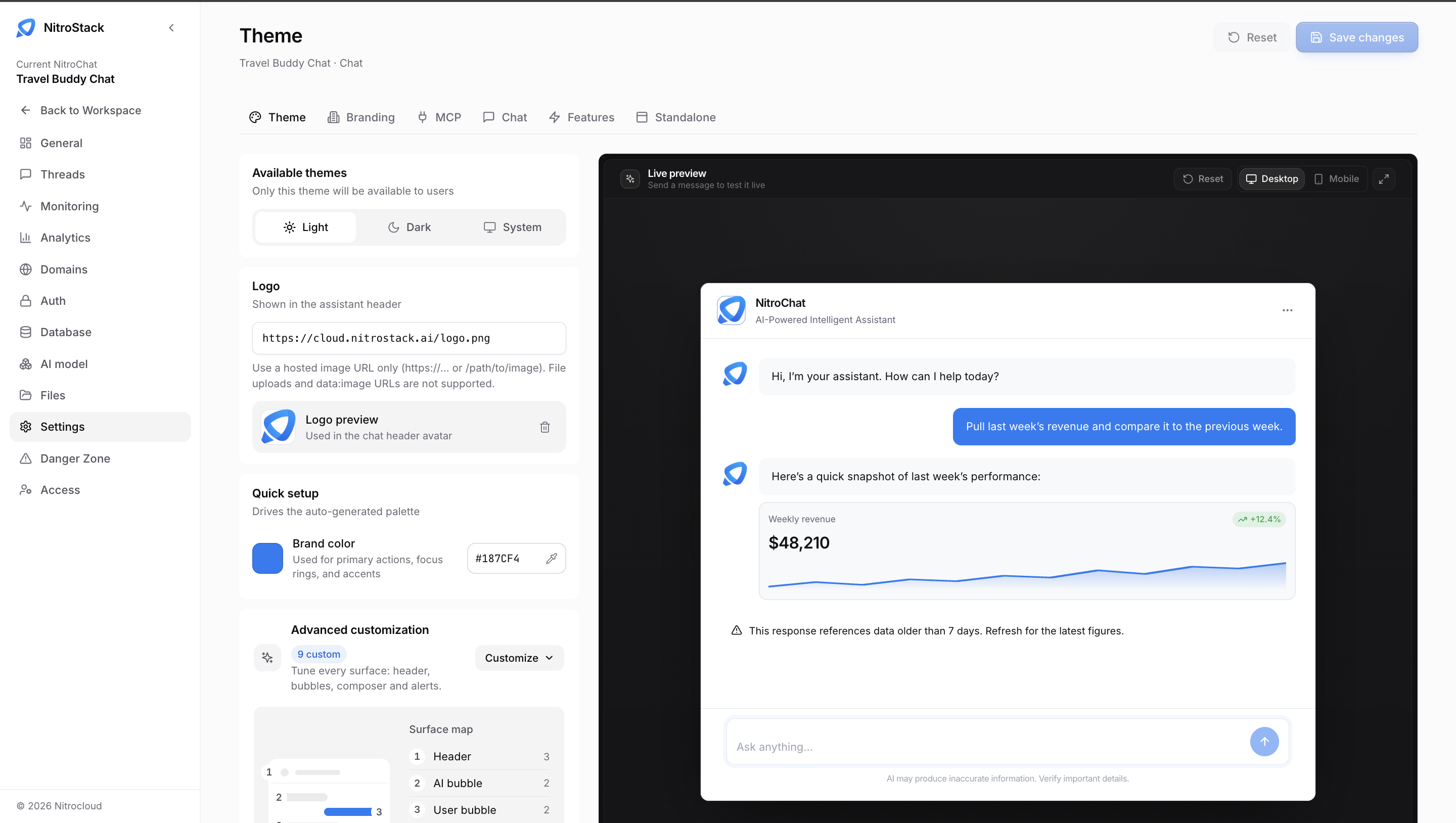
Theme sets the chat's colors, with a live preview on the right.
| Setting | What it does |
|---|---|
| Available themes | Choose Light, Dark, or System. Only the theme you choose is offered to users. |
| Default appearance | Light, dark, or system. System follows the visitor's operating system on their first visit. |
| Logo | The image shown in the assistant's header. Use a hosted image URL (https://… or /path/to/image); file uploads and data:image URLs aren't supported. The preview shows how it looks, and the bin icon removes it. |
| Brand color | Under Quick setup. A hex color, such as #187CF4, that drives the generated palette: primary actions, focus rings, and accents. |
| Advanced customization | Customize tunes every surface by hand: the header, the assistant's and the user's bubbles, the composer, and alerts. The Surface map numbers each surface, and the badge shows how many you've customized. |
Live preview is a working chat that updates before you save: send a message to test your changes. Switch between Desktop and Mobile, reset the conversation with Reset, or expand the preview to full size.
Branding
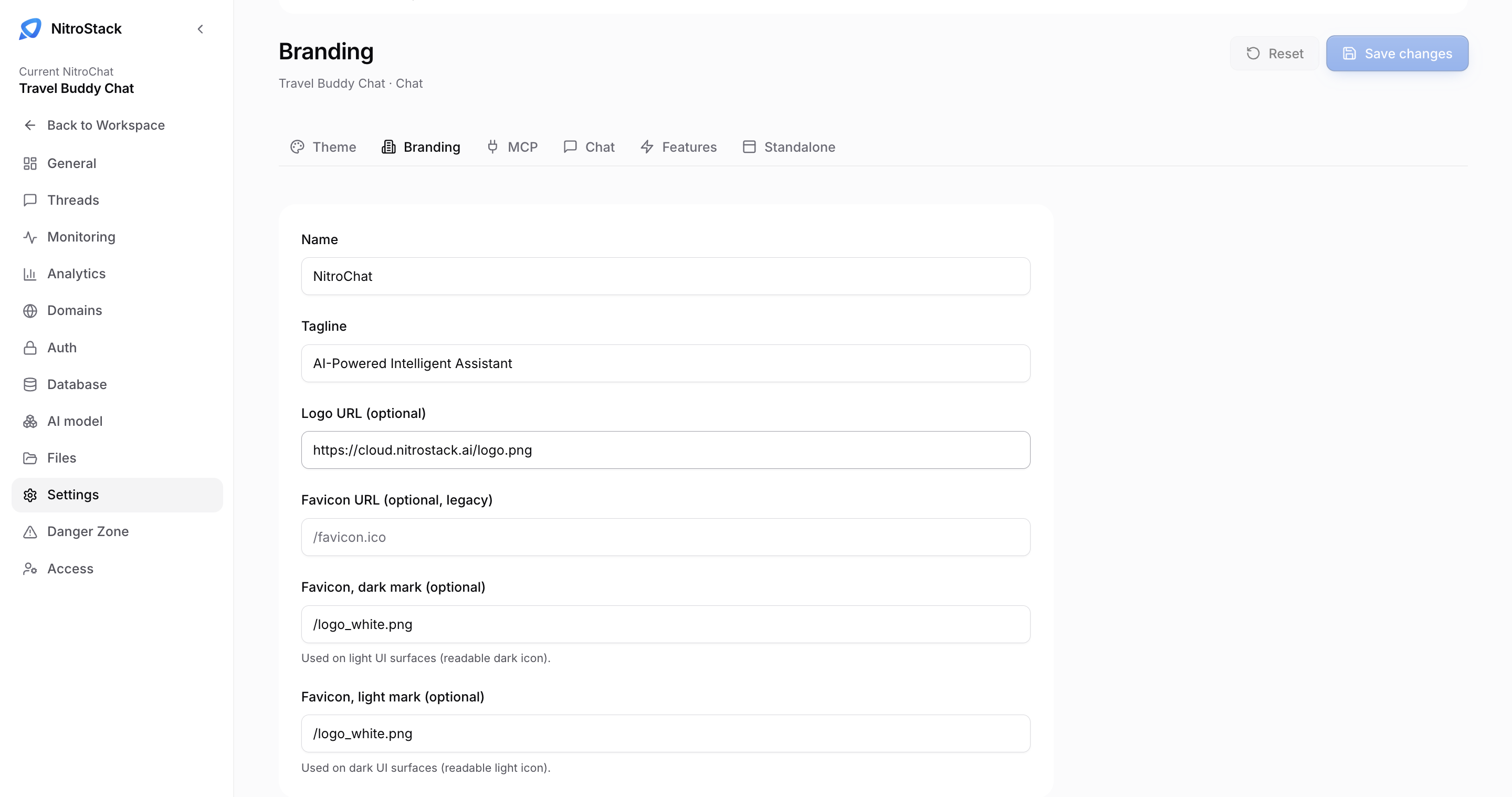
Branding sets the names and images people see: the chat's name in its header and browser tab, its tagline, and its icons. This is the chat's own name, not the app's name in NitroCloud.
| Field | What it's for |
|---|---|
| Name | The assistant's name in the header, such as NitroChat. |
| Tagline | The line under the name, such as AI-Powered Intelligent Assistant. |
| Logo URL | Optional. The logo, as a hosted image URL. |
| Favicon URL | Optional, and kept for older setups. A single browser-tab icon. |
| Favicon, dark mark | Optional. A dark icon, used on light surfaces where a dark mark is readable. |
| Favicon, light mark | Optional. A light icon, used on dark surfaces. |
MCP
MCP shows the server the chat uses.
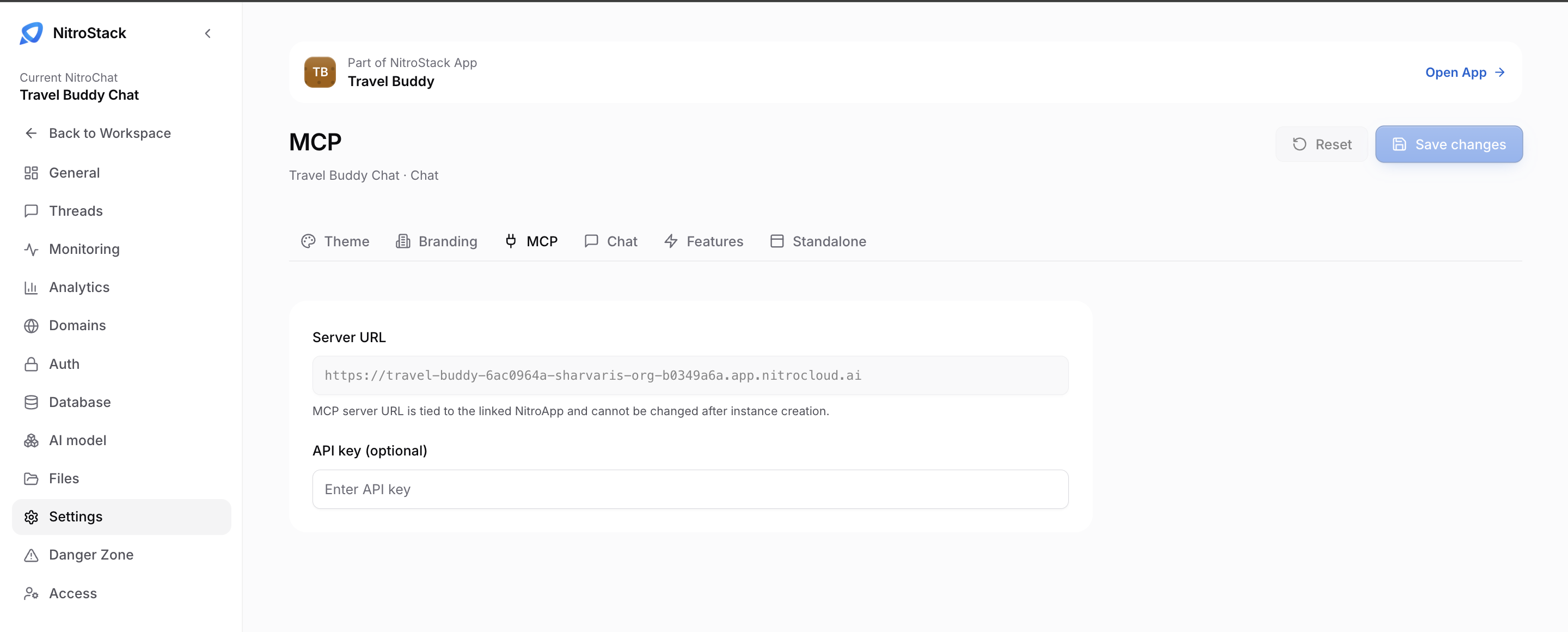
Server URL is the MCP endpoint the chat calls, ending in .app.nitrocloud.ai. For a chat created from an app, it's locked to that app's server, and you can't point the chat at a different server after it's created.
API key is optional. When your server requires a key, enter it here, and the chat sends it to the server with each call. It isn't the chat's gateway key, and it isn't an organization API key.
Chat
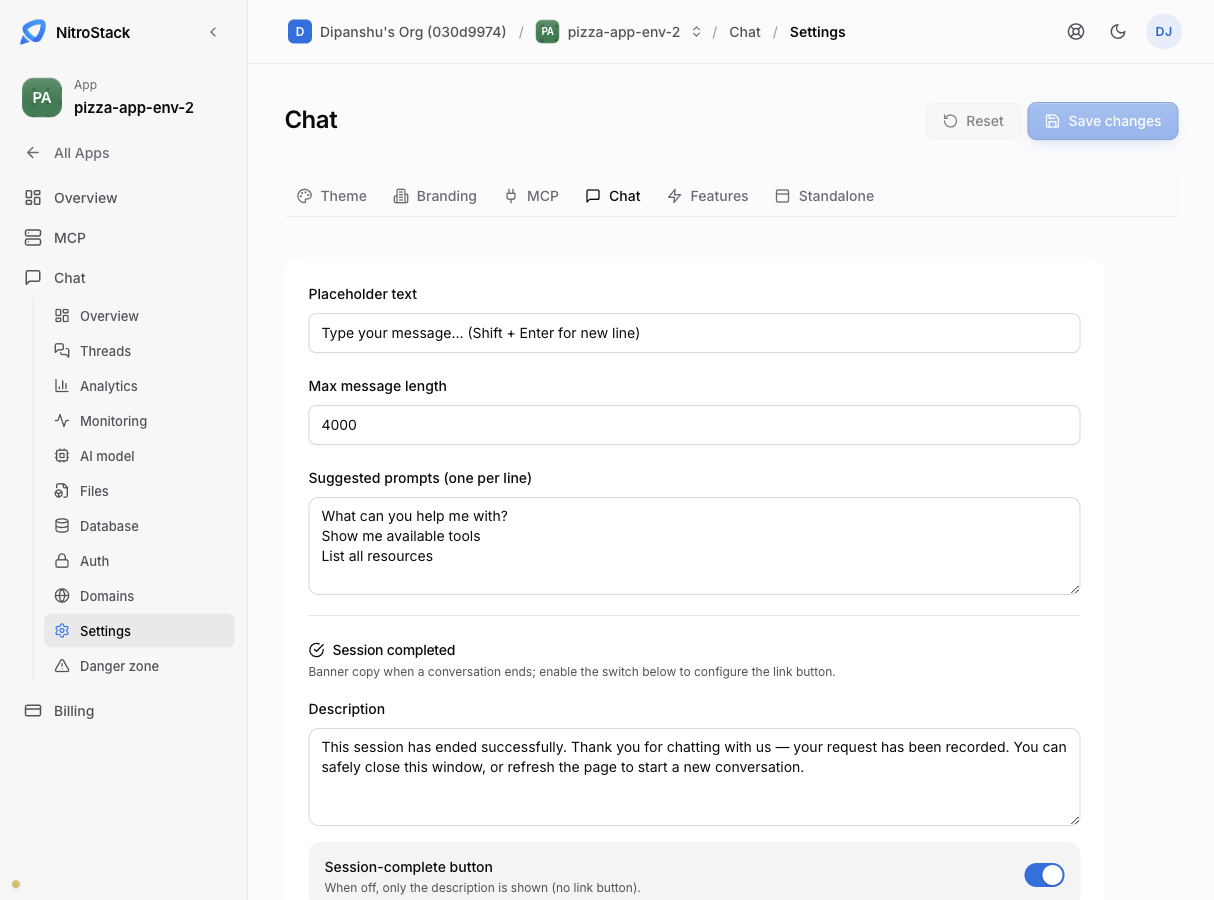
Chat sets the text and limits inside a conversation:
- the placeholder text in the message box
- the maximum message length, 4,000 characters by default
- the suggested prompts shown when a conversation is empty
- the message and button shown when a session ends, including the button's colors
Features
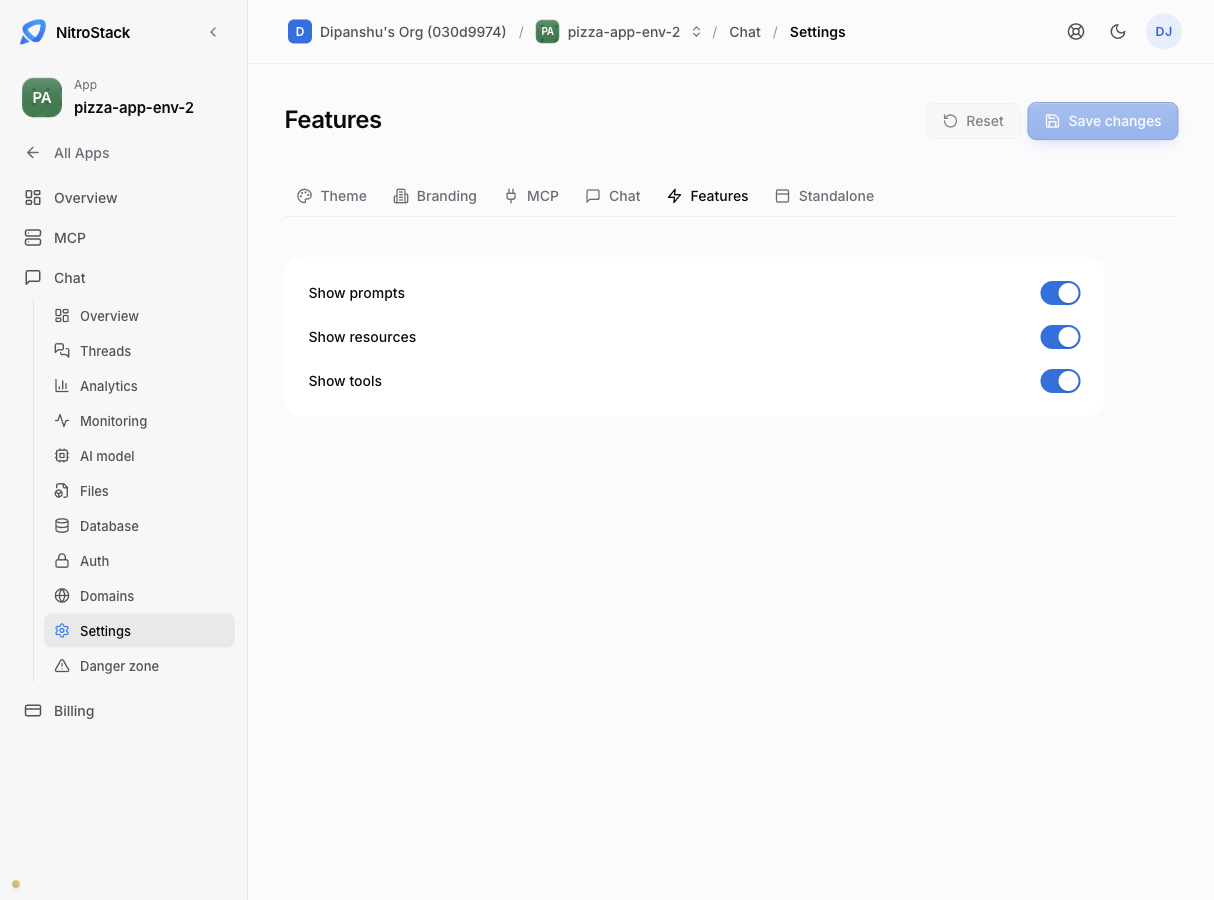
Features has three switches that show or hide panels in the chat: Show prompts, Show resources, and Show tools. They're all on by default. Turn one off to hide that kind of MCP primitive from visitors.
File uploads aren't on this tab. Turn them on in Files.
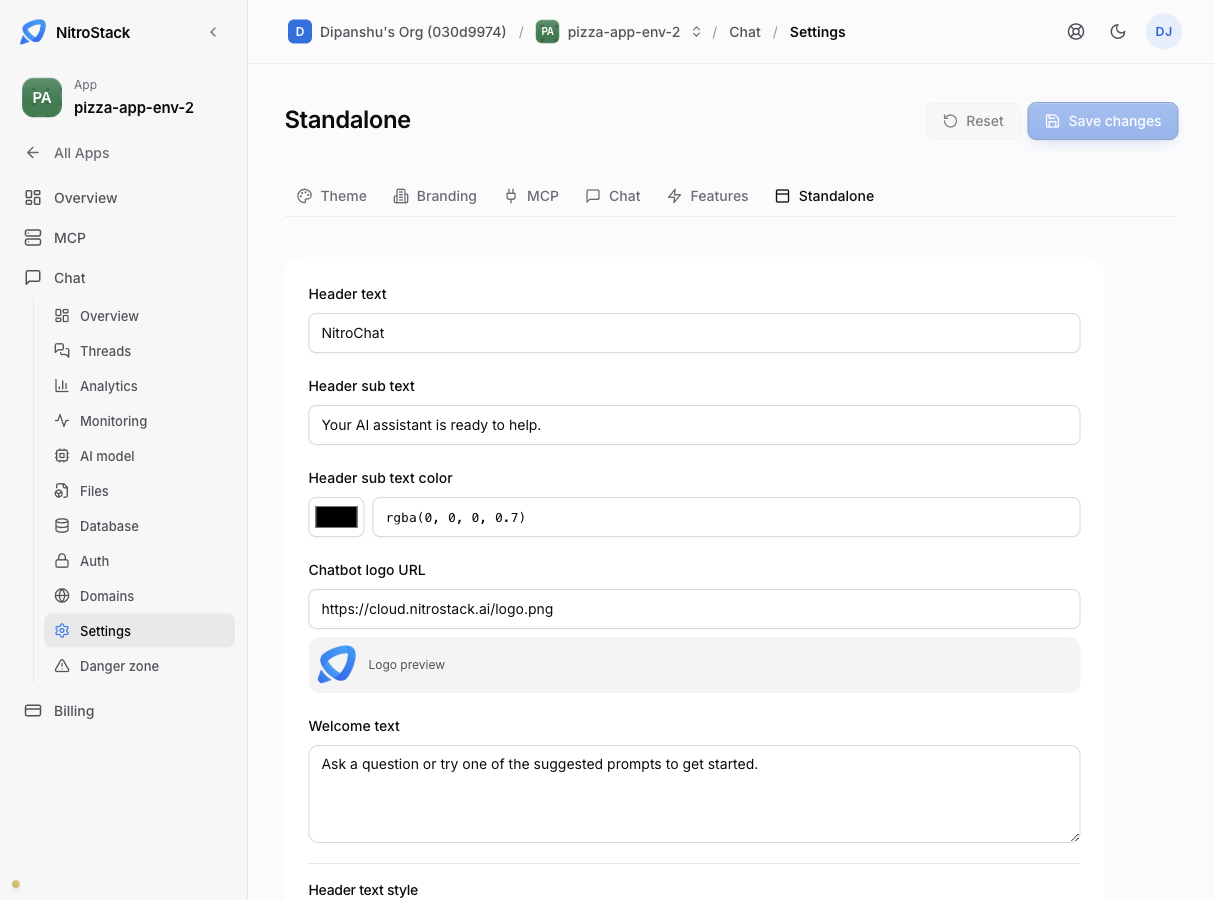
Standalone
Standalone sets the header text and the welcome message for the full-page chat at the chat's own URL, separately from the embedded widget. Use it when the floating bubble on your website and the standalone page should greet people differently.