Teams
Members, roles, invitations, and requests
Two pages in the Organization part of the sidebar manage the people in your organization: Team and Requests.
View your team
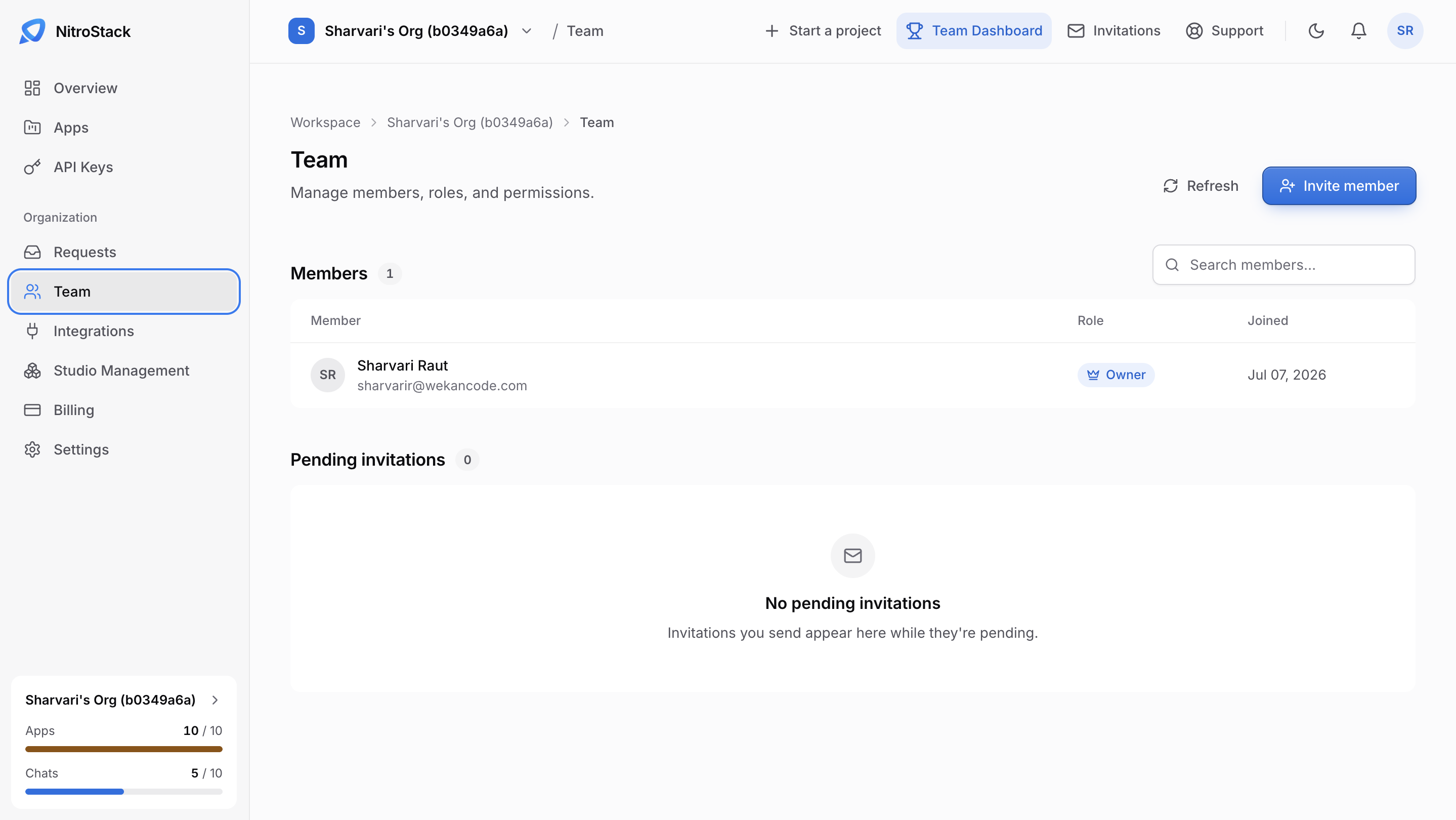
Team lists everyone in the organization, with their role and the date they joined. Use Search members to find someone, and Refresh to reload the list.
Roles
Everyone in the organization has a role. The role controls what they can do on the organization's pages and, separately, inside each chat they can open.
| Role | In the organization | In a chat they can open |
|---|---|---|
| Owner | Full access, including billing and deleting the organization. | Full access, including managing members and deleting the chat. |
| Admin | Manages settings, members, and apps, and the billing pages open to owners and admins. | Manages settings, deployments, and domains. Can't delete the chat. |
| Member | Uses the apps they're allowed to open. | Views the chat, deploys, and reads logs, monitoring, and analytics. Can't change settings. |
| Guest | Read-only, wherever they're invited. | Views the chat, logs, and monitoring. |
A person's role in a particular chat can be changed on that chat's Access page without changing their organization role.
Invite a member
Click Invite member and enter their email address. NitroCloud sends them an invitation email, and the invitation waits under Pending invitations until they accept it. They accept it from Invitations in the top bar.
You can also invite people from Studio management. Studio access is a separate switch there: an invitation doesn't turn on Studio for the person by itself.
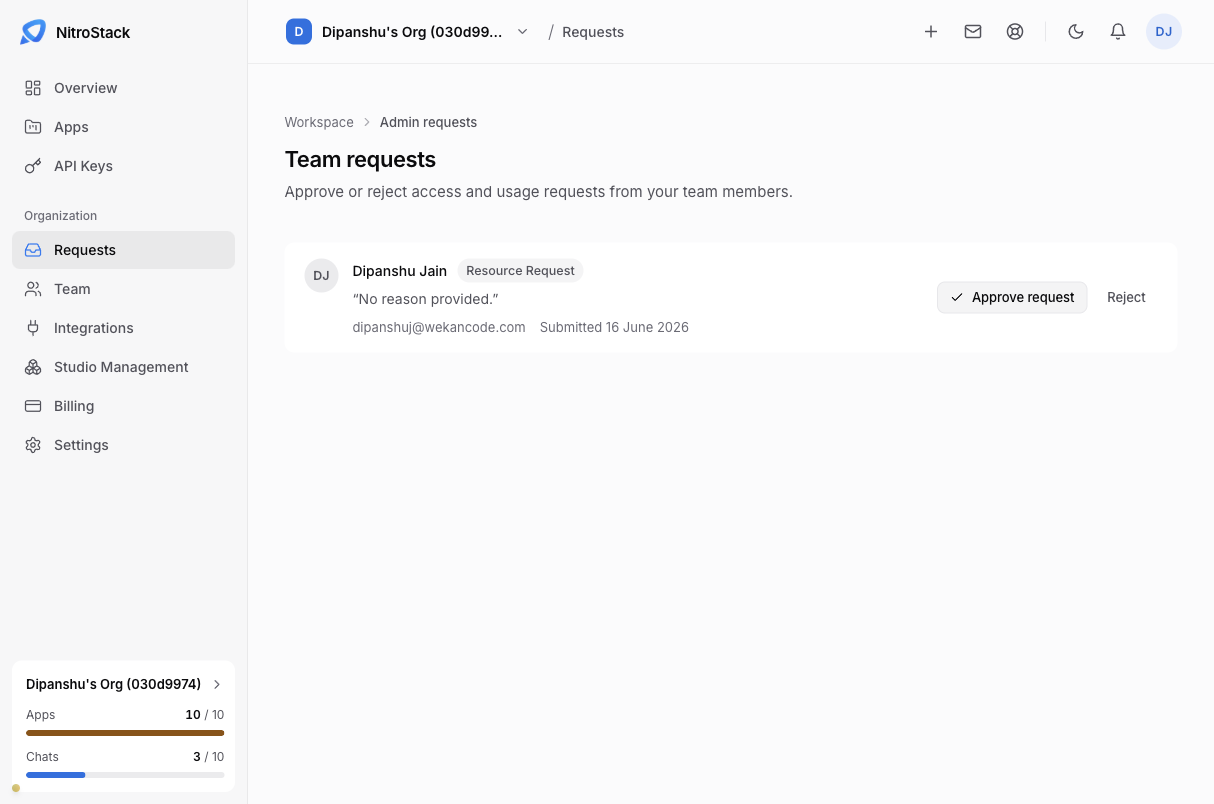
Requests
Requests, in the sidebar, is the queue for things members can't do themselves, such as raising the organization's app limit. Approve or reject each request. When nothing is waiting, the page shows All caught up.