
AppsNitroStack Chat
Access
Who can manage this chat, and with which role
Access, in the Chat menu, controls who can manage this chat. It lists the chat's members, the invitations that haven't been accepted yet, and a reference of what each role can do. Owners and admins can open it.
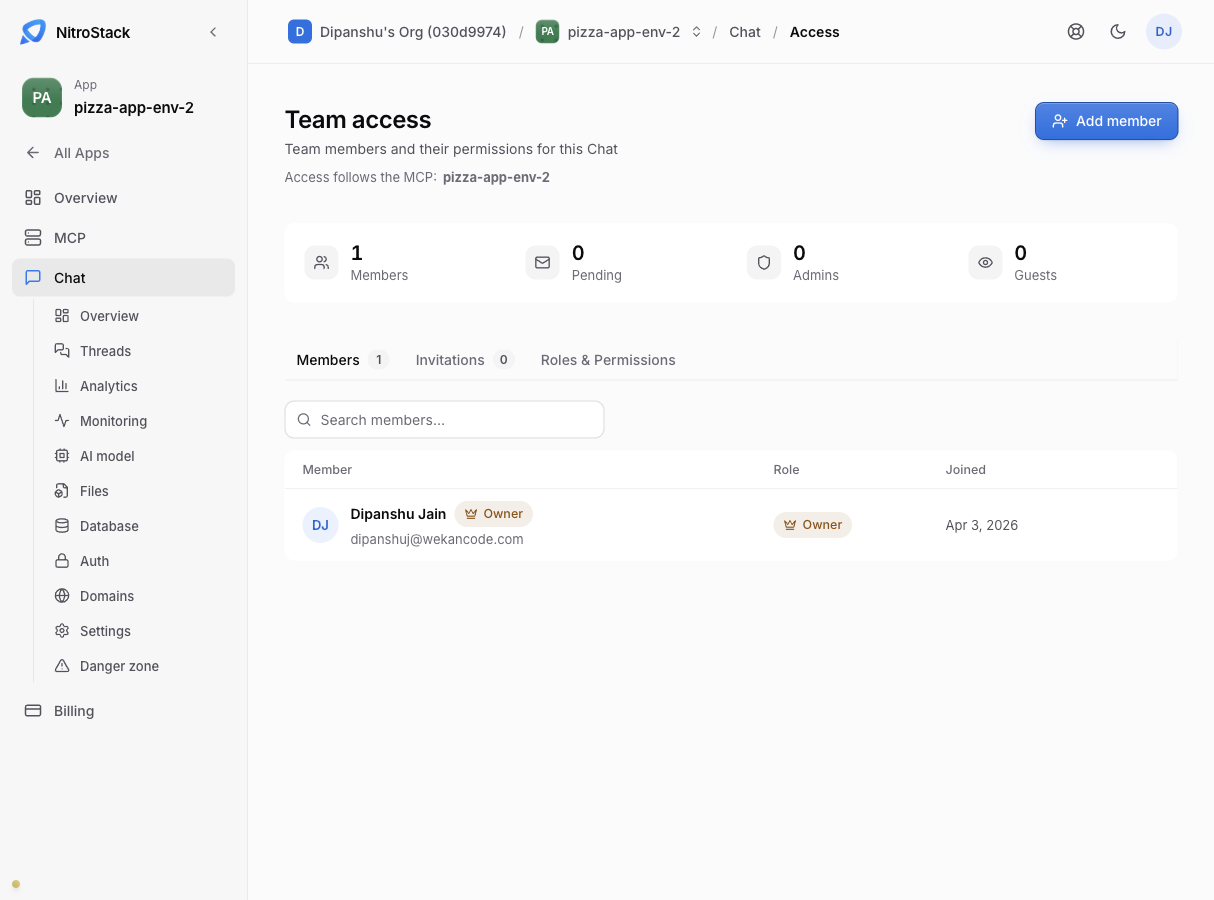
Roles in a chat
| Role | Can |
|---|---|
| Owner | Everything, including managing members and deleting the chat. |
| Admin | Change settings, deployments, and domains, and read logs, monitoring, and analytics. Can't delete the chat or manage members. |
| Member | View the chat, deploy, and read logs, monitoring, and analytics. |
| Guest | View the chat, logs, and monitoring. |
A person's role here applies to this chat only. It doesn't change their organization role on Teams.
Invite someone
Click Invite member, enter their email address, and choose a role. The invitation gives them access to this chat through its linked MCP server. Invitations expire, and you can revoke a pending invitation before it's accepted.
Change a role
When you change a member's role, the new role takes effect the next time they load the chat.