
Database
Store the chat's history in a MongoDB database you run
Database, in the Chat menu, stores the chat's history in a MongoDB database that you run, so conversations live in infrastructure you own. Leave it empty and the chat keeps using the default store. Only owners and admins can change it.
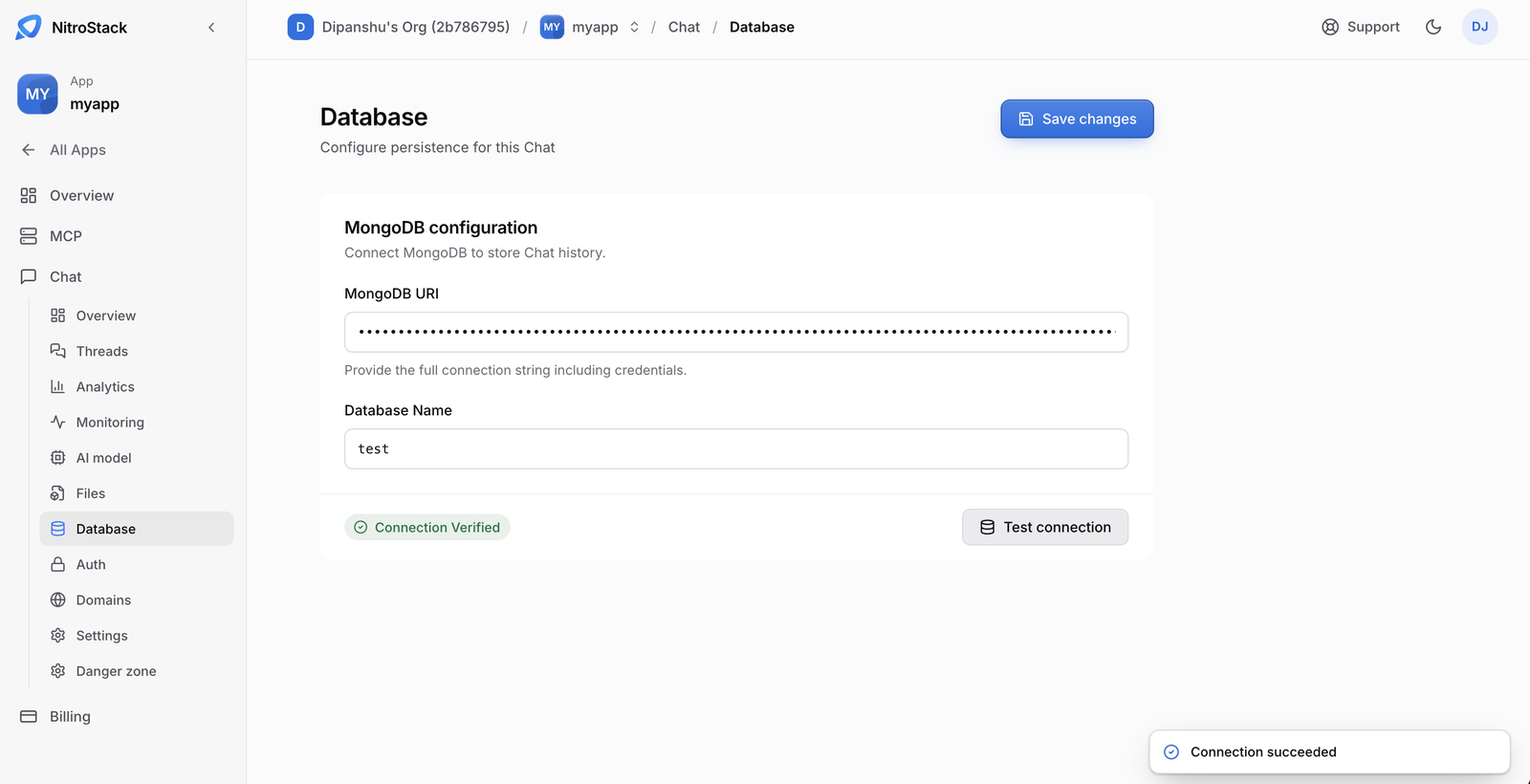
Connect MongoDB
Paste the connection string
Under MongoDB configuration, paste the MongoDB URI: the full connection string, including the user name and password, such as mongodb+srv://user:pass@cluster.mongodb.net/?retryWrites=true&w=majority. The field is masked.
Name the database
Set Database Name; the placeholder is nitrochat. A database used only by this chat keeps its data separate from anything else on the cluster.
Test the connection
Click Test connection. NitroCloud connects to your database with the URI and name you entered. When it works, a Connection succeeded notice appears and the card shows Connection Verified. Save changes stays disabled until a test succeeds, so a mistyped connection string can't be saved. If the test fails, the previous configuration stays in place.
Save
Click Save changes. New messages go to that database from then on.
If your MongoDB host only accepts connections from listed IP addresses, allow NitroCloud to connect before you test.
Keep the connection working
The URI is a secret. It isn't an MCP environment variable, and it isn't shown again in full after you leave the page.
When you rotate the database user's password, update the URI here, test the connection again, and save.