
Threads
Find, read, and audit the conversations people have with the chat
Threads lists the conversations people have had with this chat. Open it from the Chat menu.
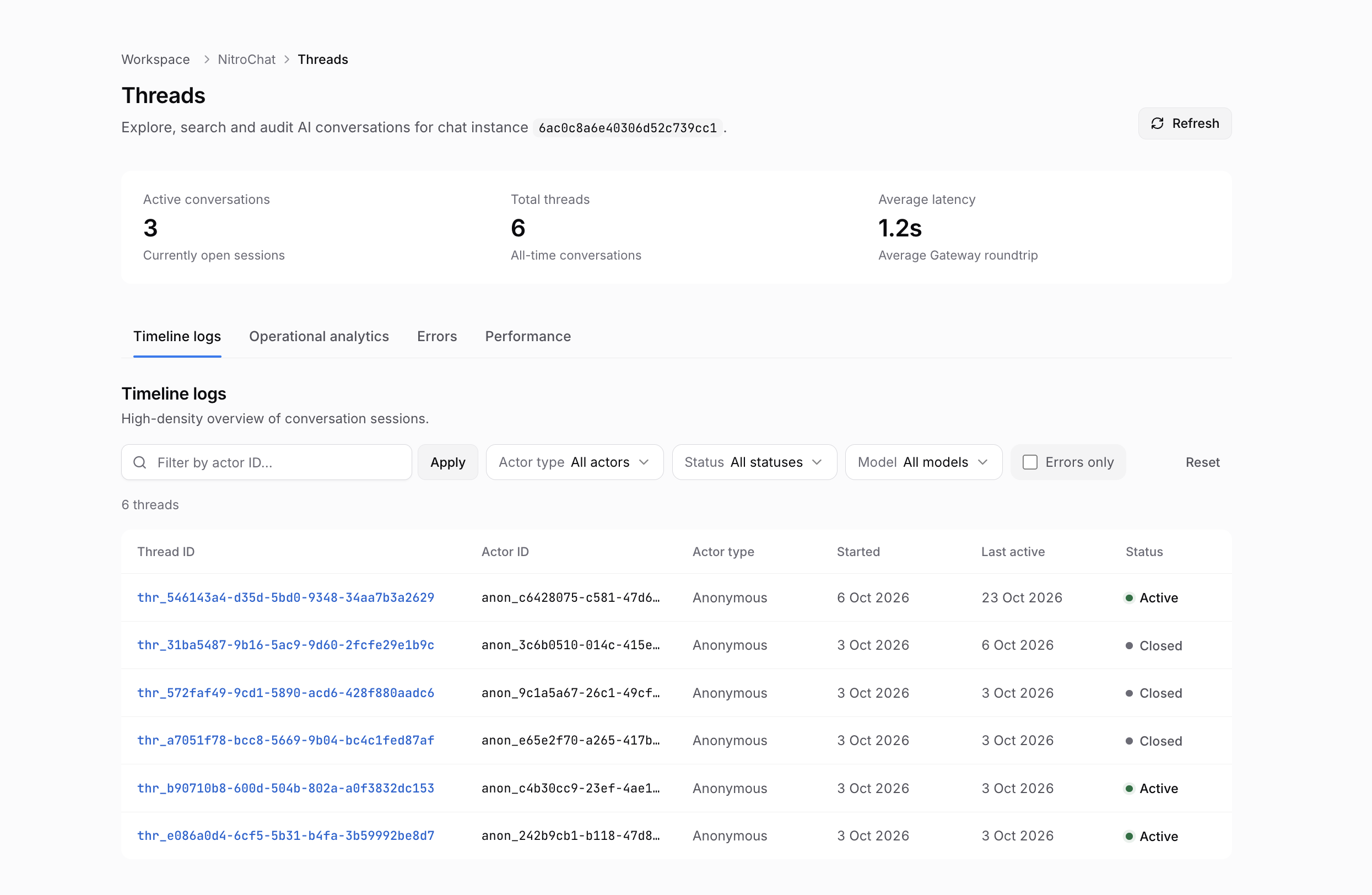
The counters at the top are Active conversations (sessions that are still open), Total threads, and Average latency. Treat average latency as informational for now: it isn't yet connected to the gateway, so don't rely on the number it shows.
Timeline logs
The default view is Timeline logs. Each row is one thread: its ID, who spoke (the actor), its status, and when it was last updated. Open a row to read that conversation.
The filters work like this:
- Actor ID applies when you press Enter or click Apply.
- Actor type, Status, and Model apply as soon as you change them.
- Has errors limits the list to threads that recorded an error.
- Reset clears the filters, and Refresh reloads the list.
Read one thread
Opening a thread shows that conversation: its messages, its tool calls, and any errors. It's the audit view for a single session, and the filters above are how you find the one you need.
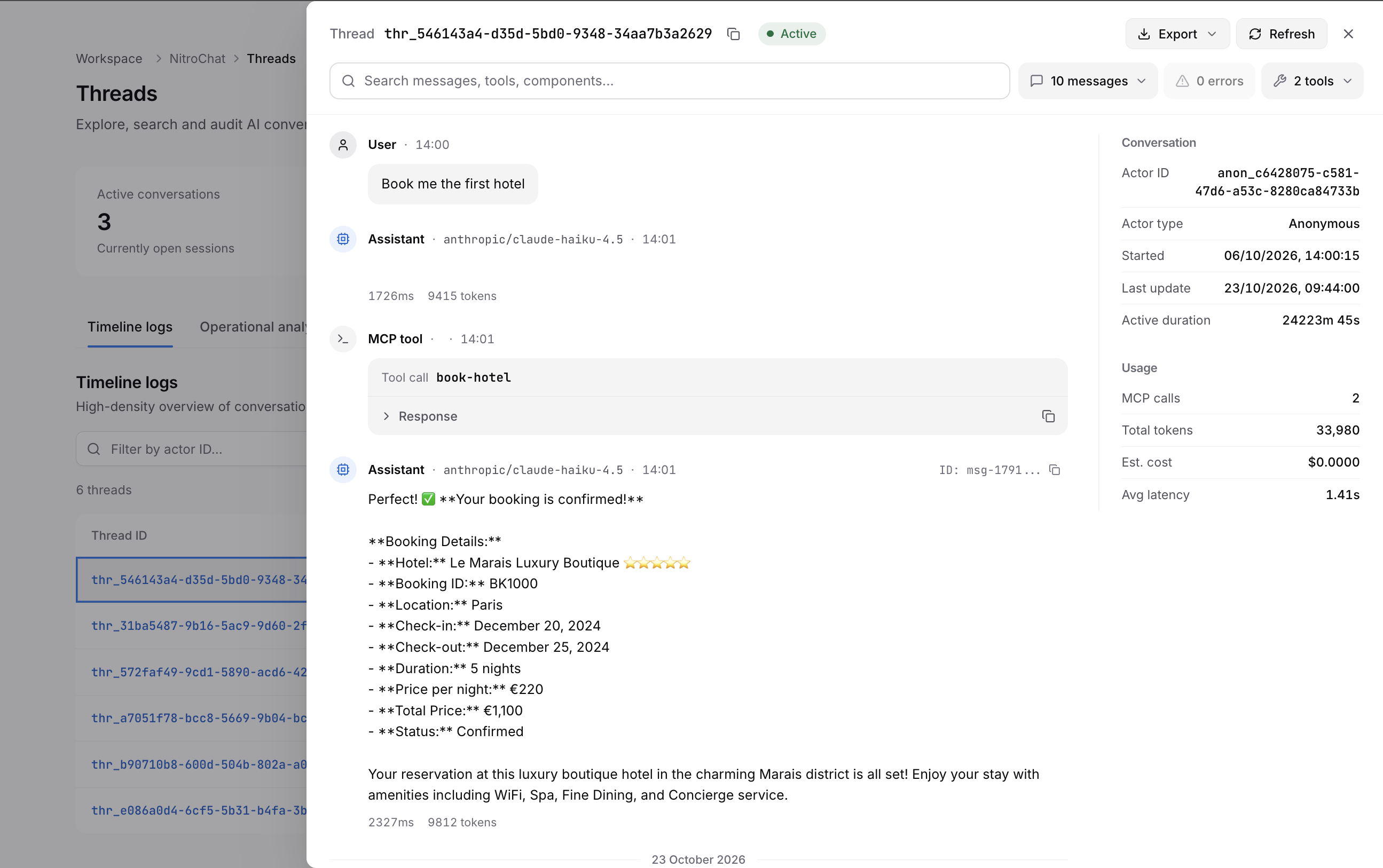
The conversation reads top to bottom. User messages are what the person typed. Assistant messages show the model that answered. MCP tool steps show each tool the assistant called; expand Response to see exactly what your server returned. The panel on the right shows who the actor is, when the thread started and was last updated, and its usage.
Other views
If your role includes thread analytics, three more tabs appear:
- Operational analytics charts volume over time.
- Errors lists the threads and calls that failed.
- Performance splits results by LLM provider, by model, and by tool. Tool rows show how often each tool ran and whether it succeeded.
Guests don't get these tabs. They still see the timeline logs if they can open the chat.