
Apps
Create apps and manage their MCP server and chat
An app is the unit you deploy in NitroCloud. Each app has two parts: an MCP module, which runs your MCP server, and a Chat module, a hosted chat that uses that server's tools. You manage both from the app's own pages.
The apps list
Open Apps in the sidebar to see every app in your organization. The counters at the top show how many apps you have, how many have an MCP server linked, and how many have a chat linked. Each row shows whether the app's MCP and chat are live, or Not deployed yet.
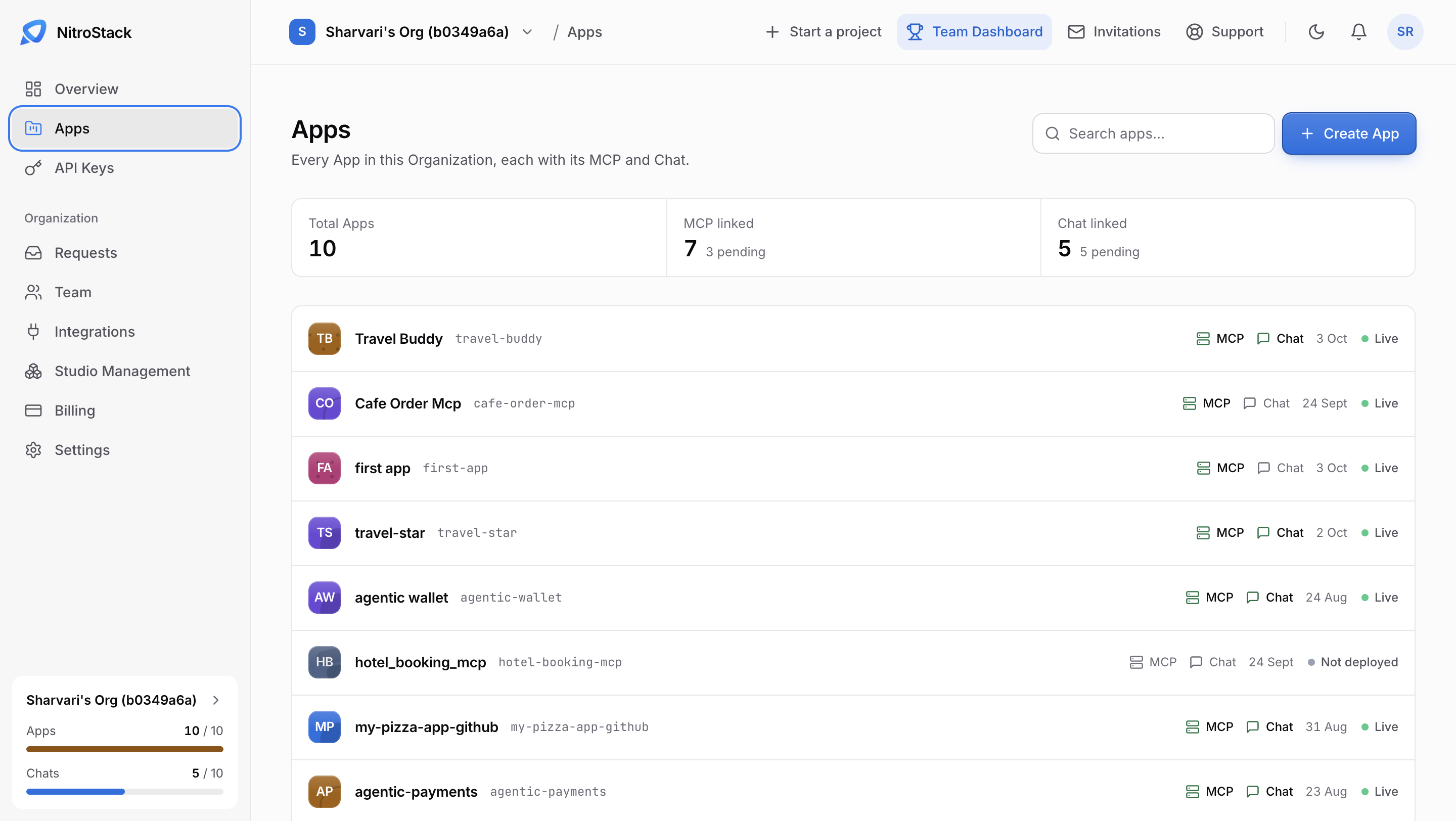
The counters also show how many MCP servers and chats are still pending, meaning they haven't been set up yet. In each row, the MCP and Chat labels are highlighted when that part of the app is linked, and the status on the right reads Live once the app is deployed. Use Search apps to find an app by name.
The card at the bottom of the sidebar shows how much of your organization's allowance you're using, such as Apps 10 / 10 and Chats 5 / 10.
Create an app
Creating an app makes an empty app; it doesn't deploy anything yet.
Open the form
Click Create App on the Apps page, or Create New App on the dashboard.
Name the app
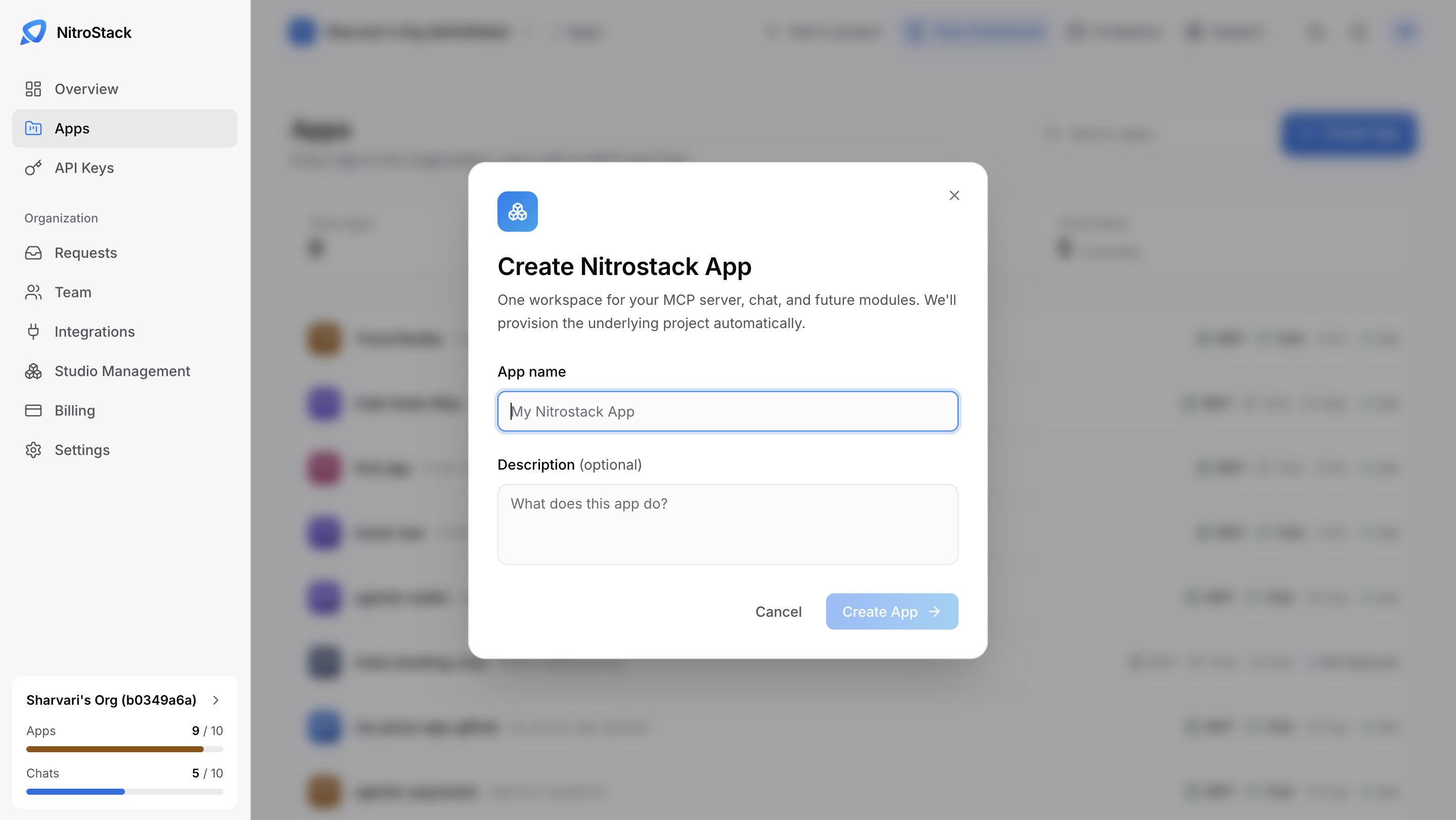
The Create Nitrostack App dialog asks for an App name and an optional Description. An app is one workspace for your MCP server, its chat, and future modules, and NitroCloud provisions the project behind it for you. The app's slug, made from its name, is used in the MCP URL and the chat URL. You can change the MCP slug later in MCP settings, but doing so changes the public URL.
Open the app
Click Create App, then open the new app. Its overview shows two modules, MCP and Chat, each Not deployed until you ship it.
Deploy the server
Deploy the server from MCP → Deployments. The chat is created from NitroChat on the MCP overview, or opened with Open Chat once it exists.
Request more apps
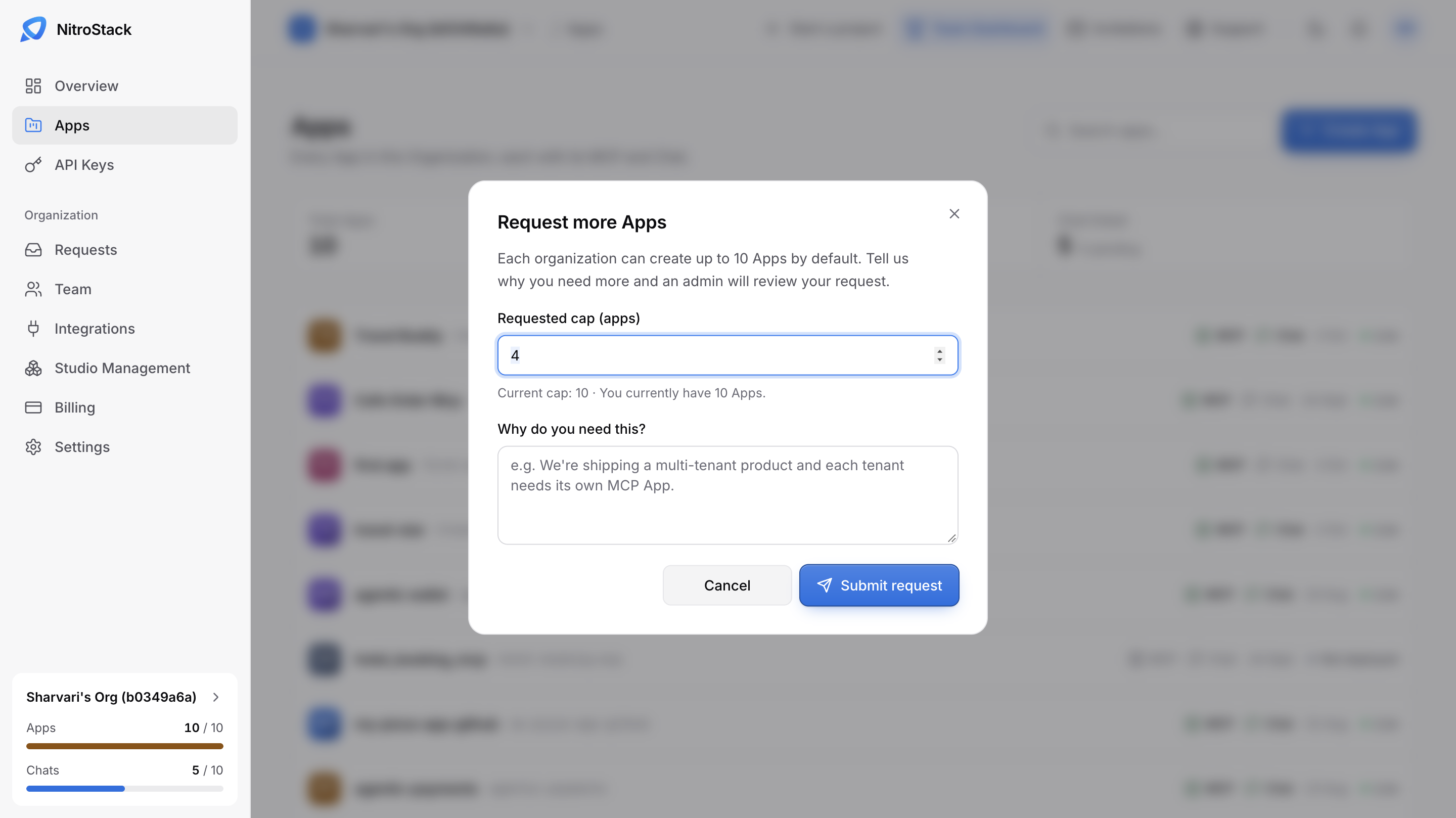
Each organization can create up to 10 apps by default. When you reach the limit, creating an app opens Request more Apps instead. Under Requested cap (apps), enter the app limit you need; the line below shows your current cap and how many apps you have. Explain why under Why do you need this?, for example that each tenant of a multi-tenant product needs its own MCP app, then click Submit request. The request goes to Requests, where an owner or admin approves a higher cap.
The app overview
Click an app to open it. The sidebar switches to that app, with All Apps to go back.
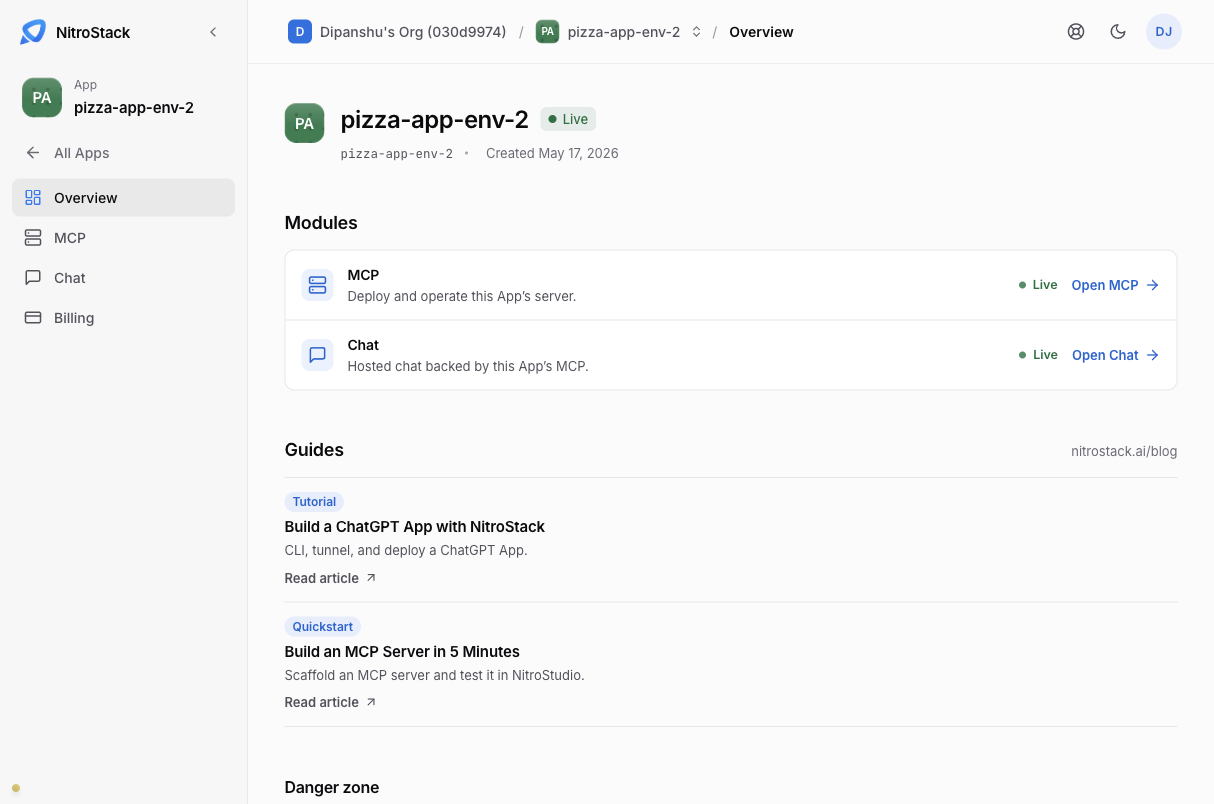
The overview shows the app's description, slug, and creation date, then:
- Modules lists the MCP server and the chat, each with its status. Open MCP and Open Chat take you to their pages.
- Guides links to tutorials on the NitroStack blog.
- Danger zone has Delete App.
Delete an app
Delete App, in the app's danger zone, removes the app with its server, its chat, its deployments, its domains, and its environment variables. You can't undo it. Owners and admins can delete an app; members can't.