
Overview
Your deployed server: its endpoint, connected clients, and technical details
Open an app and click MCP to see its server. The overview has the URL clients connect to, one-click setup for chat clients, and the server's current health.
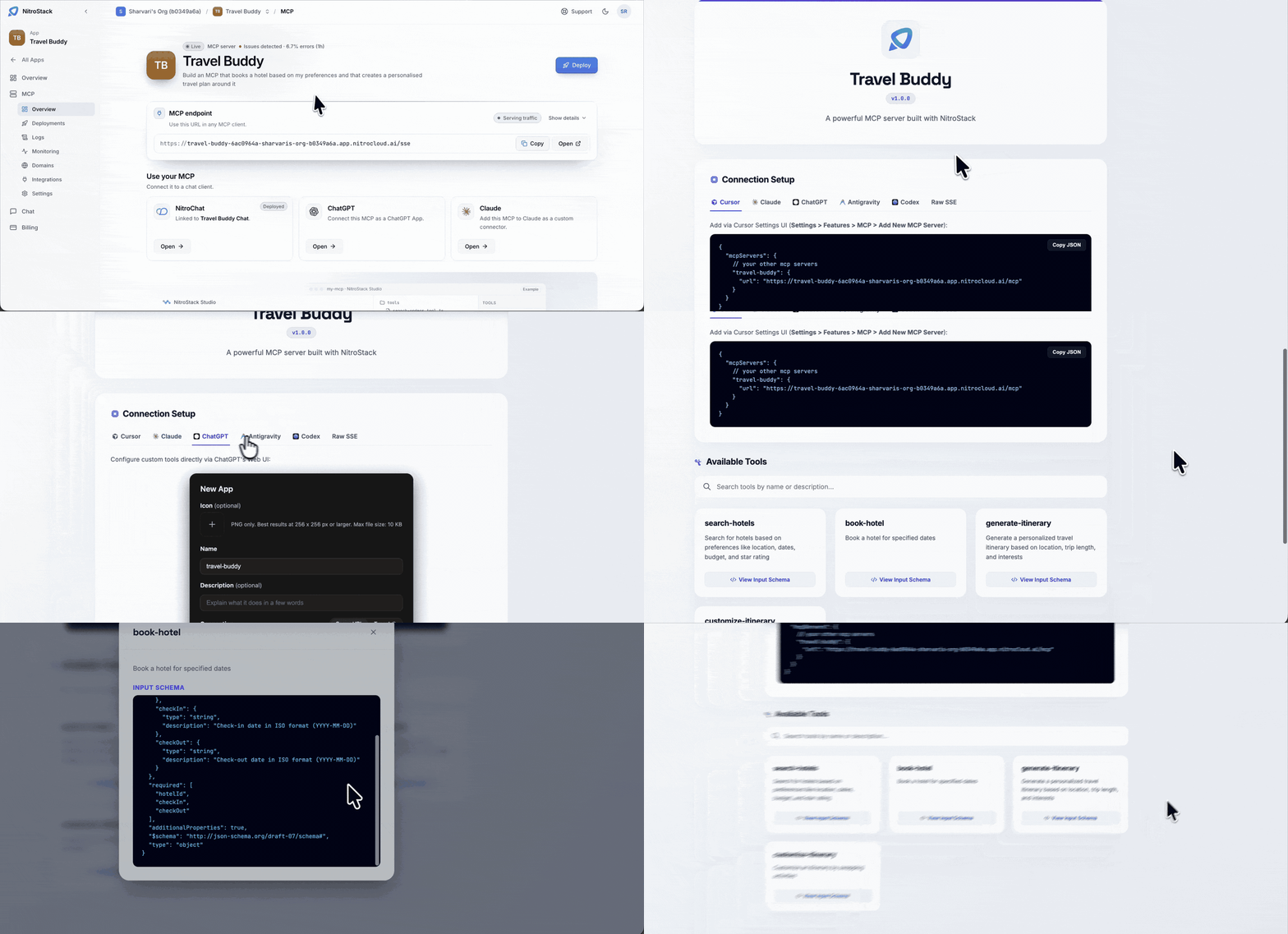
The MCP endpoint
MCP endpoint is your server's public URL, on a nitrocloud.ai address made from the app's slug and your organization's. Use it in any MCP client. Copy copies it, and Open opens your server's landing page in a new tab, which lists its tools and shows connection settings for common clients. The Serving traffic badge tells you the server is up. Show details expands more information about the deployment.
To deploy a new version, click Deploy, which opens Deployments.
Use your MCP
Use your MCP connects the server to a chat client:
| Client | What it does |
|---|---|
| NitroChat | The app's own hosted chat, already linked to this server. |
| ChatGPT | Connect the server as a ChatGPT app. |
| Claude | Add the server to Claude as a custom connector. |
Connect ChatGPT
- Copy the MCP endpoint from this page.
- In ChatGPT, add a custom app (connector) and paste the URL. Use the endpoint exactly as shown, including
/mcp. - If your server expects a bearer token, use the credential you set in the server's environment variables. NitroCloud doesn't create a ChatGPT-specific key.
Connect Claude
- Copy the MCP endpoint.
- In Claude, add a custom connector and paste the URL.
- Send a message that should call one of your server's tools. If the call fails, check that the overview shows Serving traffic, then read the Logs.
NitroChat needs no URL: it's already bound to this server. Open it to use the hosted chat.
Build and test with Studio
Under these cards, Vibe code your MCP opens NitroStudio, where you describe a change and watch the code, tools, and widgets update. The Visualize your tools and Test your MCP cards point to Studio's tool runner and test cases.
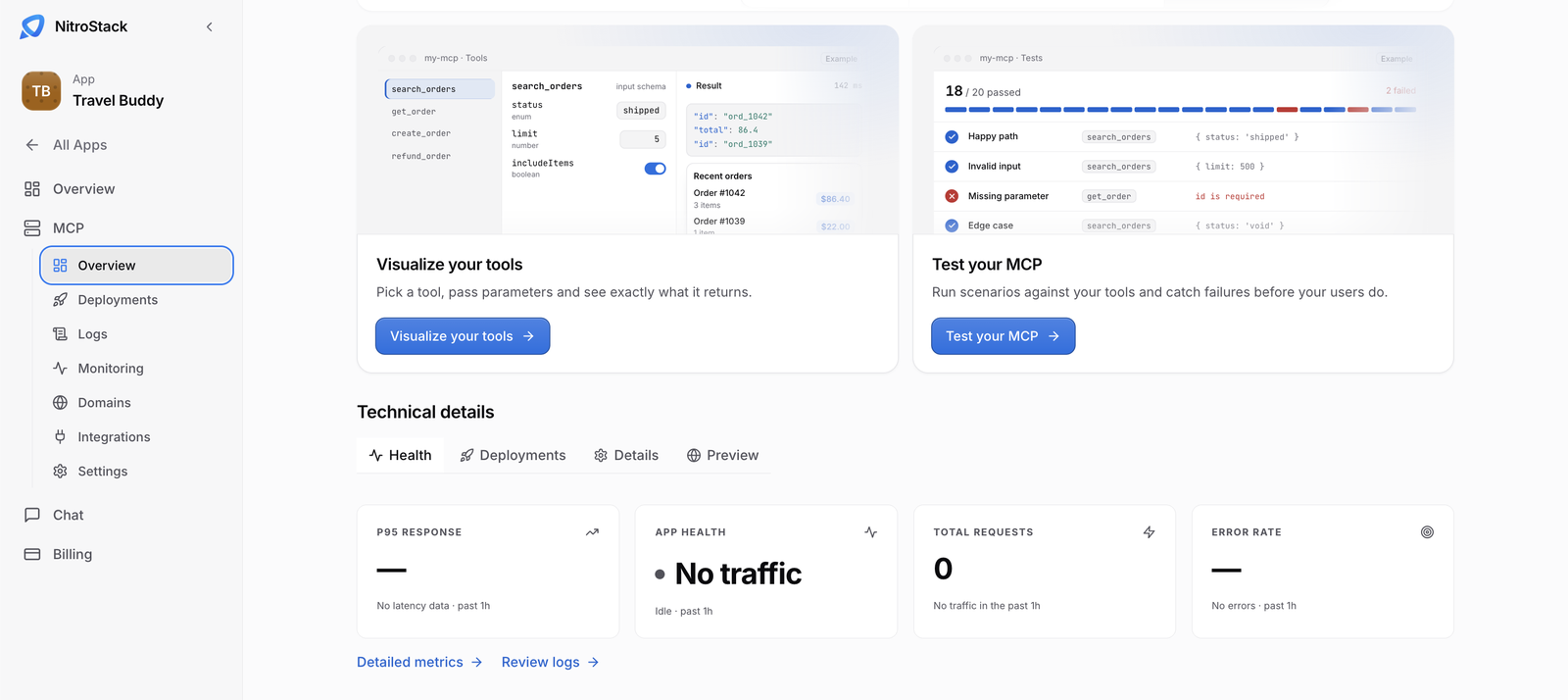
Technical details
At the bottom of the page, Technical details has four tabs:
| Tab | Shows |
|---|---|
| Health | Response time, app health, total requests, and error rate. |
| Deployments | Recent deployments and which one is live. |
| Details | The linked repository, region, and linked chat, plus links to logs and monitoring. |
| Preview | A live preview of the server's landing page. |
Next steps
Watch the videos
Check out these videos to see each client connected to a live NitroCloud server, step by step.