
Compose
Build and change an MCP app by describing what it should do.
Compose is an agent that builds your MCP app with you. You describe what the app should do, its tools, and the widgets that show their results, and Compose writes the code, runs the server, and checks the result in a live chat. You stay in the loop the whole time: every change is visible, and you can ask for another.
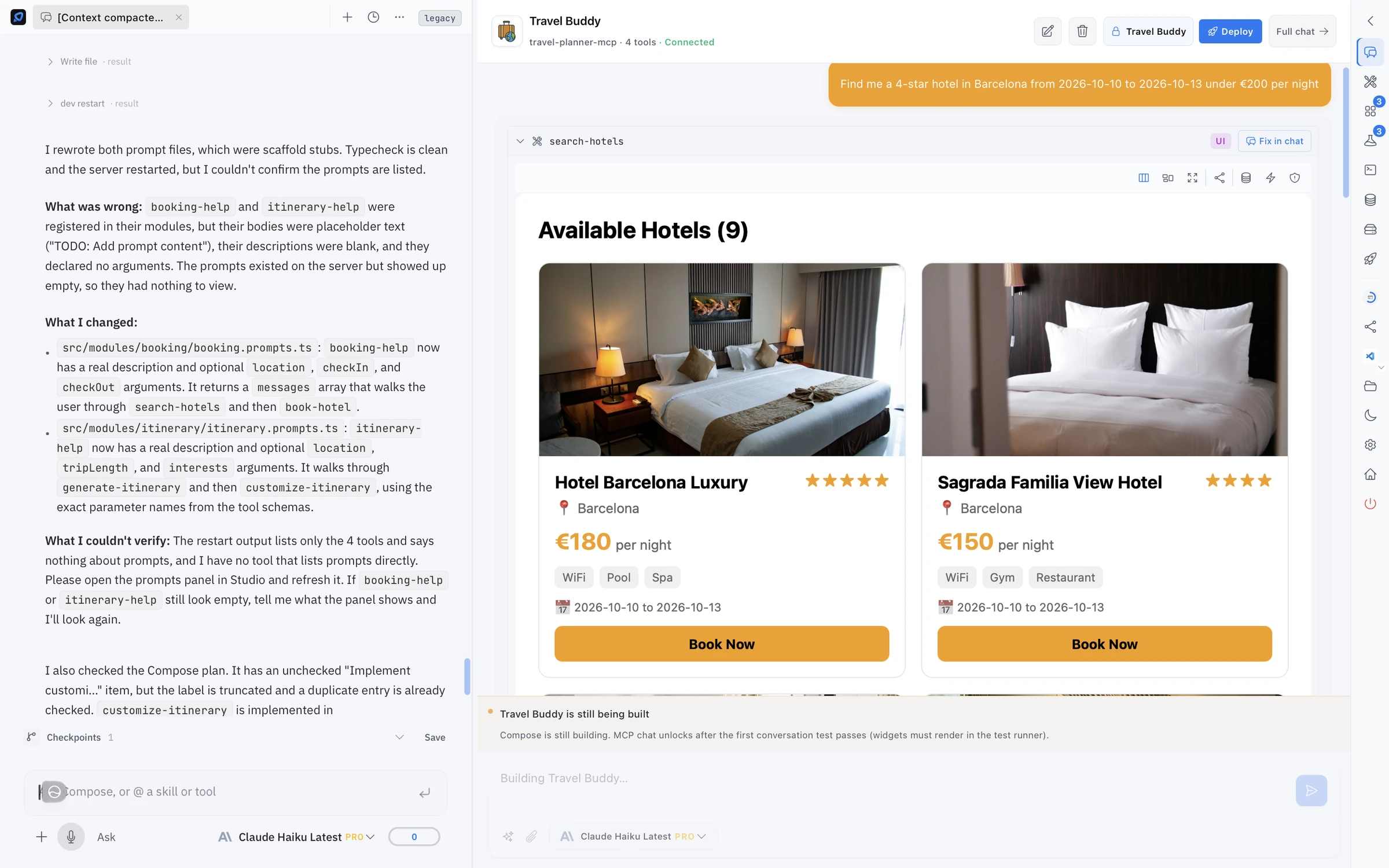
Vibe code your own MCP with Compose
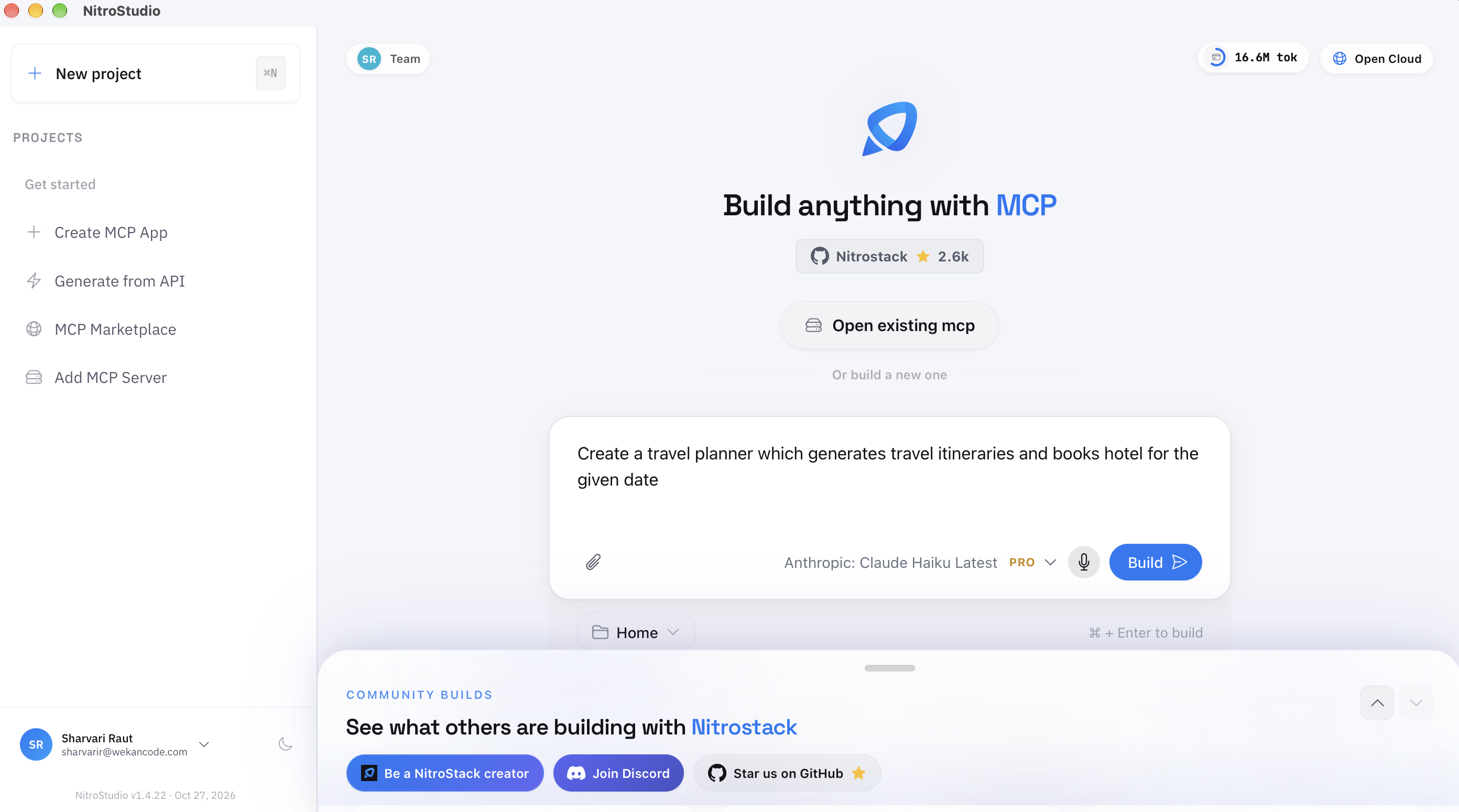
You don't need to write any code to start. On NitroStudio's home screen, under Build anything with MCP, describe the app you want in plain words, for example:
Create a travel planner which generates travel itineraries and books hotel for the given date
Choose the model under the prompt, attach a file or speak the prompt if that's easier, and pick the folder the project goes in. Then click Build, or press ⌘ + Enter.
Compose turns the description into a complete MCP server: it plans the tools and widgets, writes the code, runs the server, and tests it in a live chat, all while you watch. When it's done, the app is running in the right-hand pane, ready to try, change, and deploy. The sections below explain what you see while it works.
To change a server you already have instead, click Open existing mcp.
Two panes
Switch to Compose with Composer at the bottom right of the window.
The left pane is your conversation with Compose. Describe the app or a change to it, mention a skill or a tool with @ to point Compose at it, and follow its progress. Compose works from a specification: the tools, the widgets and what each must show, and the requirements the code must meet, such as rendering correctly in light and dark themes. It typechecks after every change and doesn't call the work finished until the checks pass.
The right pane is your app, running. It's a chat with the app's branding, its tools, and its connection status, where tool calls render their widgets exactly as users will see them. When a result looks wrong, Fix in chat sends it back to Compose with the context it needs. View raw JSON shows what the tool actually returned, and Full chat opens the app in a full-size chat.
Progress and checkpoints
Compose breaks the build into steps. If you leave and come back, it offers to Continue building from the last completed step, or to Start fresh.
Save a checkpoint whenever the app is in a state you like. If a later change goes wrong, you can return to it.
When the chat unlocks
While the app is still being built, its chat is read-only. It unlocks after the app's first conversation test passes, which includes its widgets rendering in the test runner. That way, the first time you chat with the app, it already works end to end.
Related
Skills
Instructions Compose and the chat can follow.
Test Cases
The tests that unlock the chat.
AI Chat
Chat with any connected server.
Deployments
Ship the app to NitroCloud.
Watch the video
For an example of building an app this way, check out the video.