
Deployments
Deploy your server to NitroCloud and see every deployment.
The Deployments page connects a Studio project to an app on NitroCloud and keeps a record of every deployment. Once a project is linked, Deploy sends the current build to that app, from here or from the top of App Canvas.
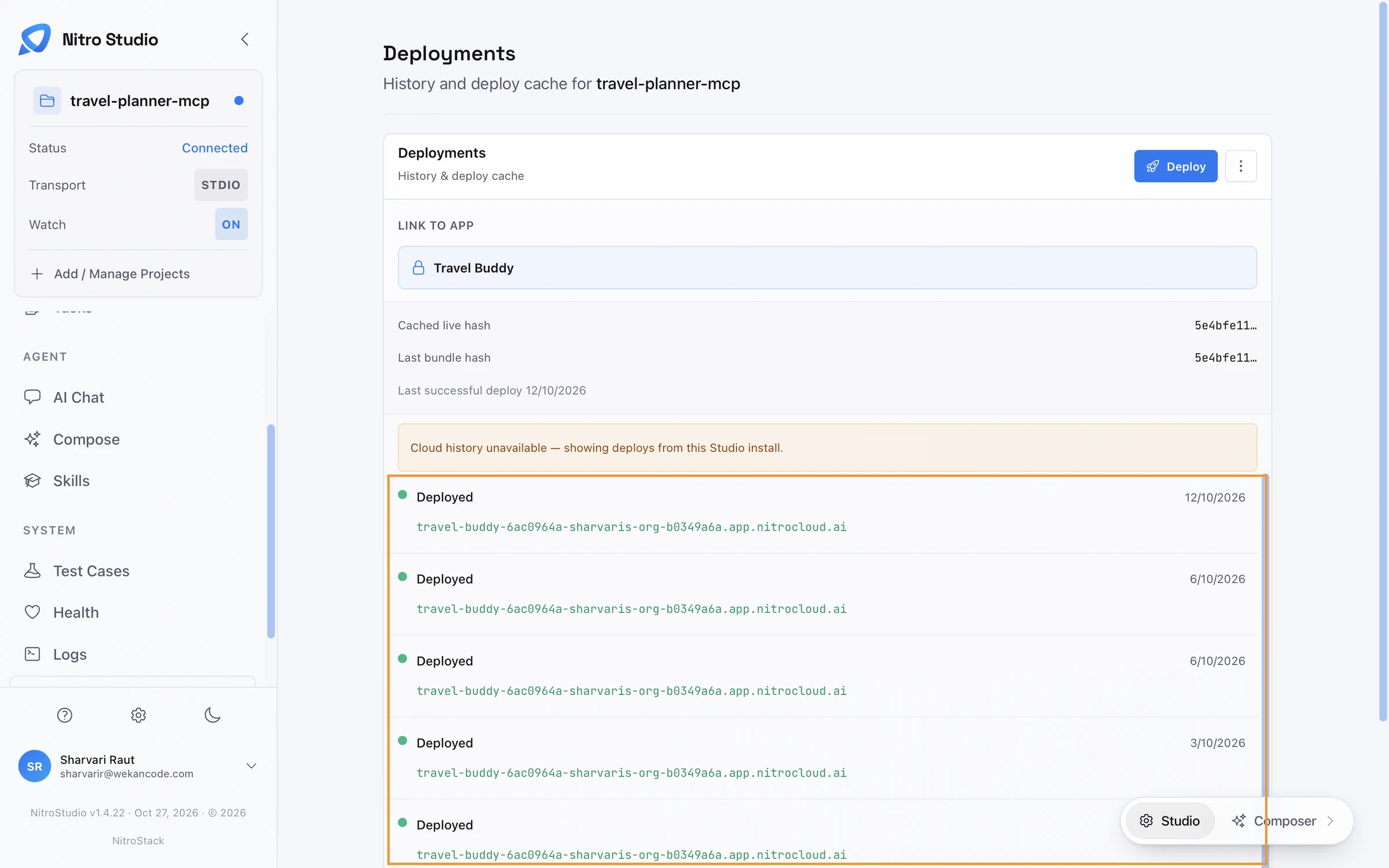
Link the project to an app
Link to app chooses the NitroCloud app this project deploys to. You need to be signed in to NitroCloud; if you don't have an account yet, create one. Once linked, the app's name appears next to every Deploy button in Studio.
Deploy
Choose Deploy. Studio builds the project, uploads the bundle, and adds a row to the history when the deployment finishes, marked Deployed or Failed, with the date and the app's URL. Your MCP endpoint is that URL followed by /mcp.
Know what's live
Under the linked app, Studio shows two hashes: the cached live hash, which identifies the bundle running on NitroCloud, and the last bundle hash, which identifies the last bundle Studio built. When they match, the live app is running your latest build. The date of the last successful deployment is shown below them.
History
The history lists each deployment, newest first. If Studio can't reach NitroCloud's history, it says so and shows the deployments made from this Studio install instead.
Related
NitroCloud
Deploy from the dashboard instead.
App Canvas
Deploy from the canvas.
Authentication
Credentials for protected servers.
Watch the video
Check out the video for a walkthrough of everything on this page.