
Usage
Check your credit balances, and top them up by hand or automatically
Your organization has two credit balances, one for each AI product. The Studio Tokens and NitroChat Credits cards on the dashboard summarize them; each opens a usage screen where you see the details and add credit.
| Balance | What spends it | Screen |
|---|---|---|
| Studio tokens | Model calls that your team makes in NitroStudio. | Studio usage |
| NitroChat credits | Model calls that your hosted chats make. | NitroChat usage |
Top-ups are charged to a card saved on the organization's Billing page, so add one there first.
Studio usage
Studio usage shows the Studio token balance and what has been spent.
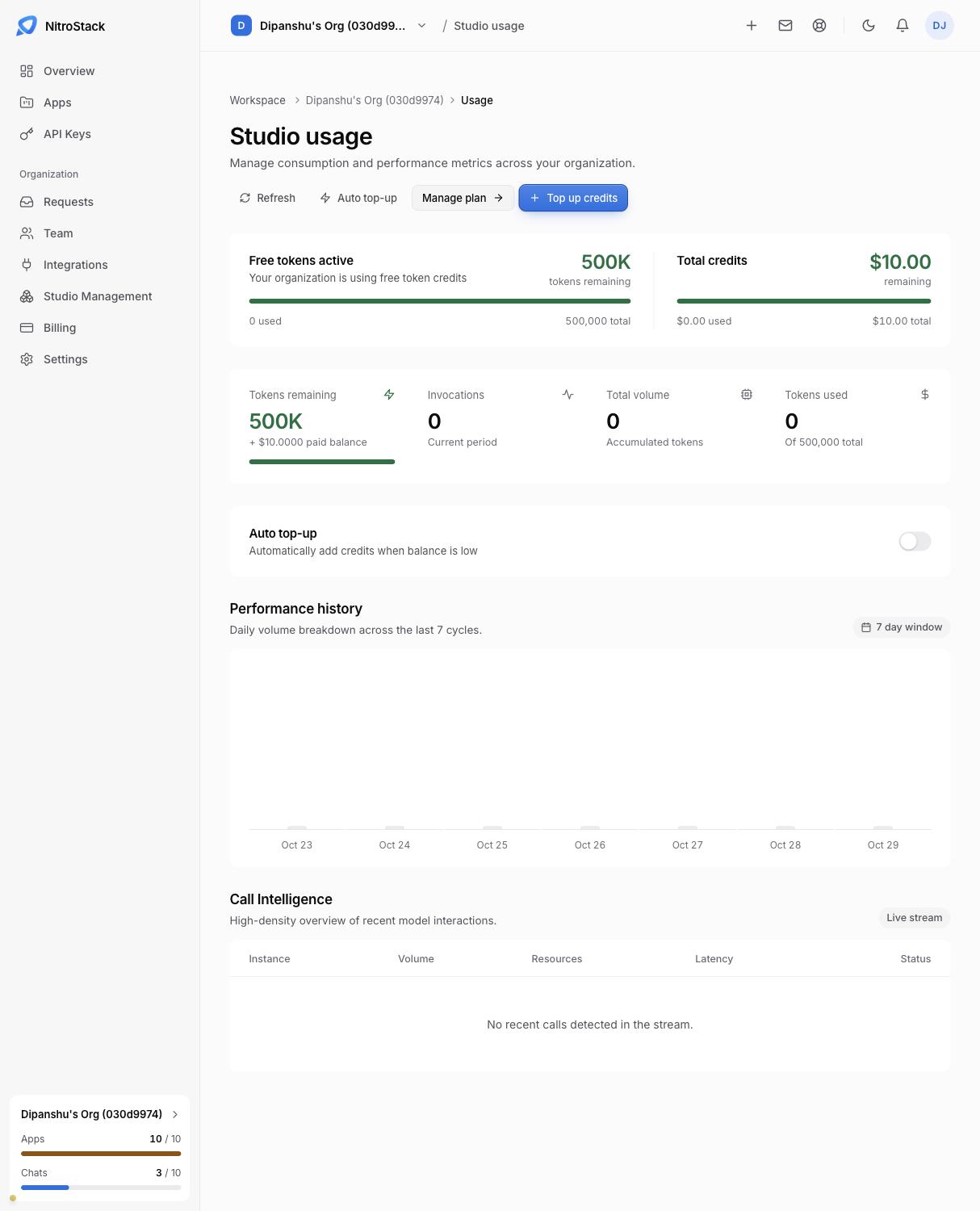
- Top up credits adds credit now, charged to a saved card.
- Top up when balance falls below sets an automatic top-up. When the balance drops under the amount you enter, NitroCloud charges a saved card before the pool runs out, so your team isn't cut off mid-task.
Who can use Studio, and how much each person can spend, is set in Studio management.
NitroChat usage
NitroChat usage works the same way for hosted chats: the credit balance, what has been spent, a manual top-up, and an automatic top-up threshold.
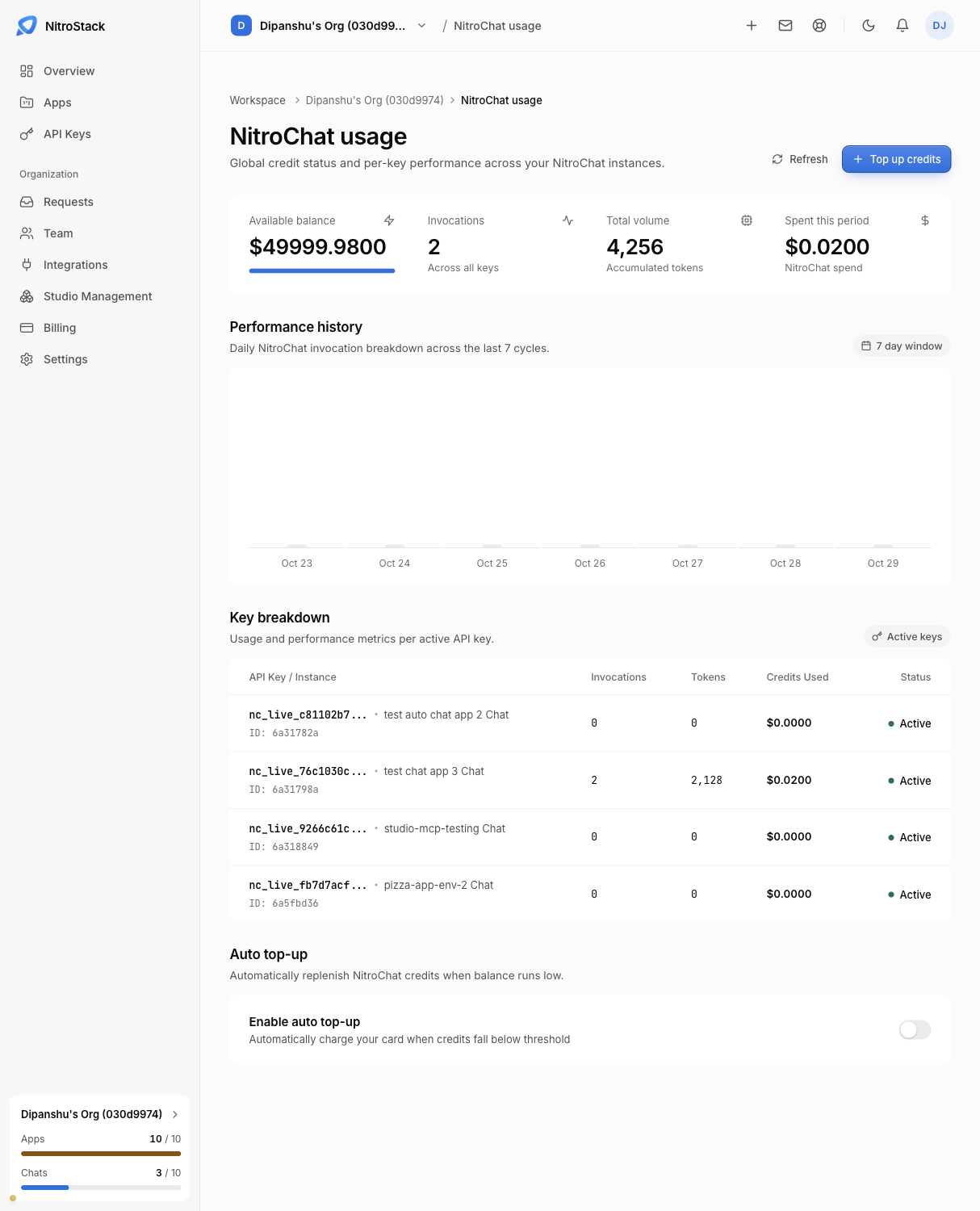
Each chat's own spending is also shown on its Gateway API key card, as credits used against the key's limit.
Your first top-up
A new organization starts on free token credits. The first paid top-up, on either screen, moves the organization to dollar billing. From then on, the member credit limits and the organization usage limit in Studio management are enforced in dollars.