
Tasks
Follow long-running tool calls while they work.
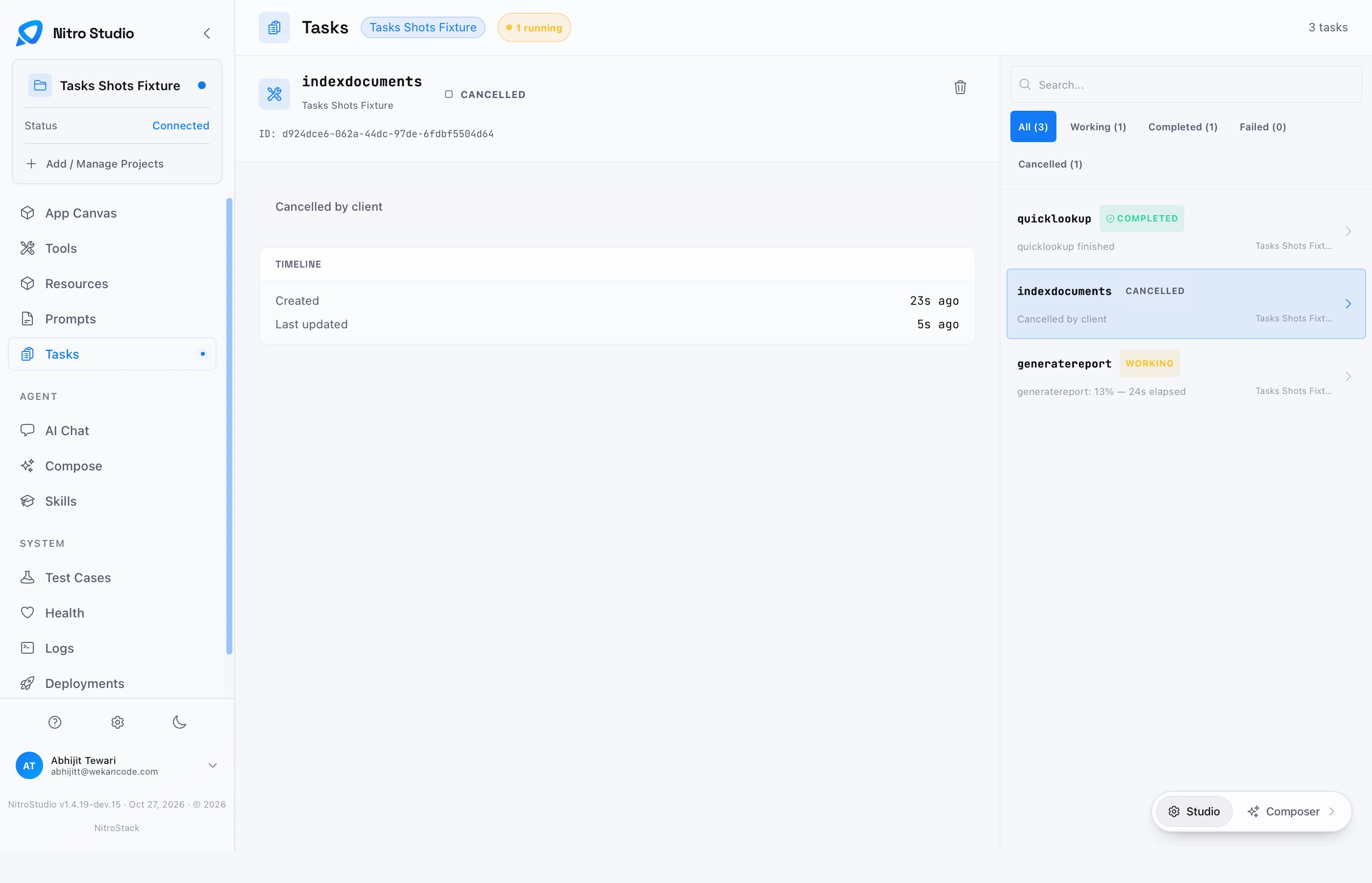
Some tool calls take longer than a client wants to wait, such as a report that takes a minute to build. A tool that supports task mode can run as a task: the call returns straight away, the work carries on in the background, and the client checks its status until the result is ready. The Tasks page shows those tasks for the connected project as they happen.
Start a task
Tasks start from the AI Chat. Ask the model to do something that uses a tool with task support, and run the tool as a task. The new task appears on this page immediately, and its status updates in real time.
Only tools written for task mode can run this way. See Tasks in the SDK to add task support to a tool.
Follow progress
The panel on the right lists tasks and filters them by status: Working, Completed, Failed, or Cancelled. The search box finds a task by name. Select a task to see its details and, once it has finished, its result.